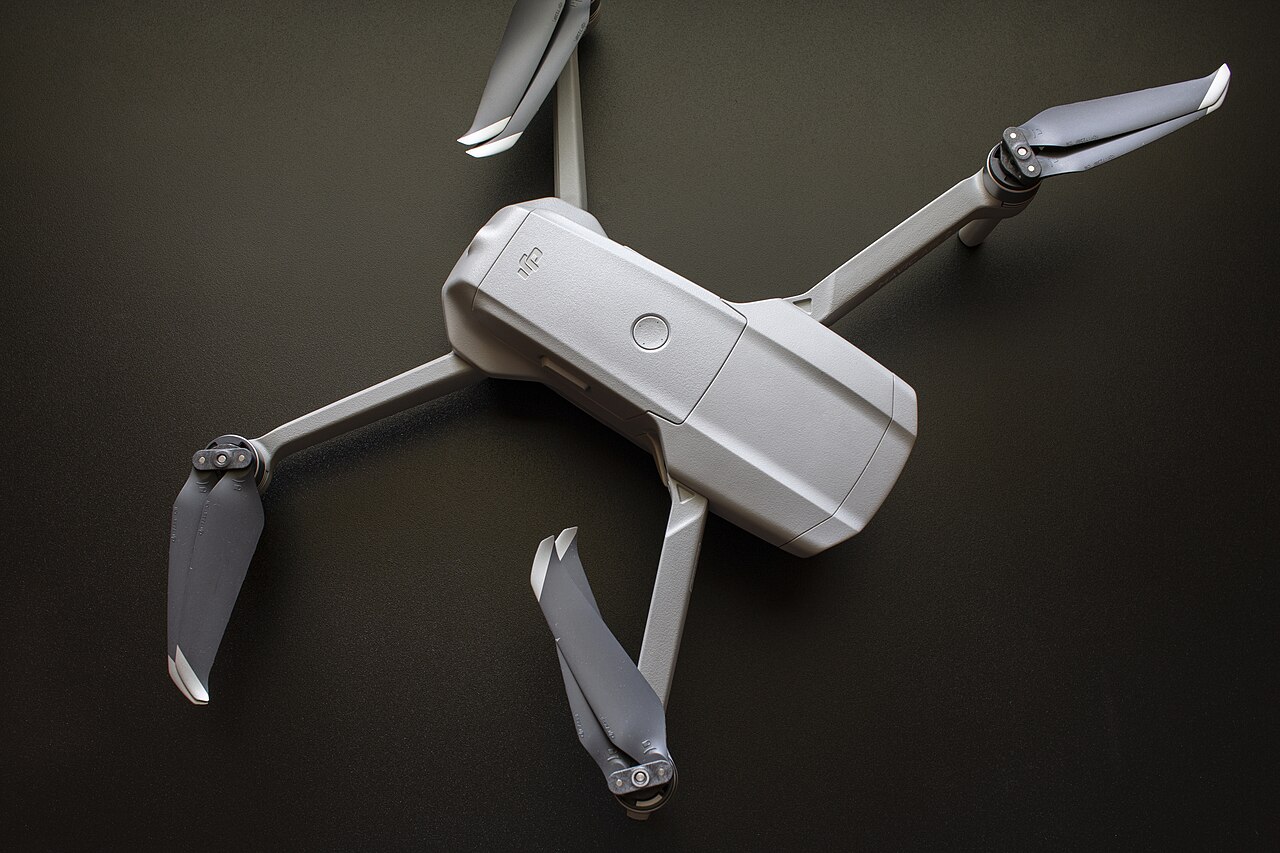
A firmware update is worth preparing for before you head out to fly. This checklist covers the general DJI Fly workflow and the next steps when an aircraft or battery update fails.
Check your model first
DJI uses different apps and desktop utilities for different aircraft. Its general DJI Fly walkthrough uses the Mavic Air 2 as an example; do not assume every controller has identical menus. Find your model in DJI’s update guide before starting. This article was checked against documentation on October 25, 2026, and has not been tested on physical hardware.
Prepare for the update
Charge both the aircraft and controller above 50%, following DJI’s troubleshooting guidance. Keep the device downloading the update connected to a reliable network. Set aside time when you will not need to disconnect cables or power down the equipment.
Update with DJI Fly
- Power on the aircraft and remote controller, then connect them to DJI Fly.
- When the app offers new firmware, start the download using its update prompt.
- Keep the network connection available while the download finishes.
- Start installation when prompted and wait for completion. In DJI’s example, the aircraft restarts automatically afterward.
- Keep the aircraft powered on and the app open throughout installation.
If installation fails
A short pause in progress is not, by itself, a reason to interrupt installation. DJI recommends restarting the aircraft and mobile device if progress remains stuck for an extended period, then trying again; it does not specify a universal waiting time in this guidance.
If repeated app attempts fail, DJI recommends the compatible DJI Assistant 2 desktop application. Use the version linked for your exact aircraft in DJI’s support table. If the problem continues, save a screenshot of the error and contact DJI Support rather than repeatedly interrupting the process.
If the warning concerns the battery
DJI’s battery firmware troubleshooting page describes a failed battery update that can show the two middle battery LEDs lit or an inconsistent-firmware warning in DJI Fly.
For that documented issue, connect the controller and mobile device, power on the aircraft and controller, and follow the firmware prompt on the DJI Fly home screen. If no prompt appears, DJI points to the compatible DJI Assistant 2 utility on a computer. Contact DJI Support if the issue remains unresolved.
Keep a useful record
Our suggestion: note the aircraft model, controller, app version, and exact error message before asking for help. Include what you already tried. This makes your support request clearer and avoids treating advice for a different DJI model as a direct match.
Sources & further reading
- https://repair.dji.com/help/content?customId=en-us03400006835&documentType=artical&lang=en&paperDocType=paper&re=PL&spaceId=34
- https://repair.dji.com/help/content?customId=01700006479&documentType=&lang=en&paperDocType=ARTICLE&re=US&spaceId=17
- https://repair.dji.com/help/content?customId=01700007272&lang=en&paperDocType=ARTICLE&re=US&spaceId=17