Quick answer: identify whether the download failed or the installation failed, restore the required battery and connection conditions, then use the update method DJI lists for your exact model. Repeatedly forcing restarts is not a useful diagnosis.
AI-assisted preparation and source verification, November 6, 2026. This guide summarizes official documentation; ClearTech has not reproduced your error or tested a repair.
Record the failure before trying again
Take a screenshot of the full error, including any code. Record the drone model, controller model, app version and whether the failure appeared during download or installation. Those details make the next attempt a comparison instead of a guess.
A Mini-series drone and a standalone DJI Transmission system are different products. Do not install software intended for another device because a search result mentions “transmission firmware.” This article concerns DJI camera drones; use the support page for your exact product.
For normal preparation before an update, start with our DJI firmware walkthrough.
Check power and avoid interrupting installation
DJI's failure guide says both the aircraft and controller should have more than 50% battery before an update. It also warns against operating the product, disconnecting its USB cable or turning it off during installation.
A stationary progress indicator alone does not tell you how much time remains. DJI suggests restarting the product and mobile device if progress has been stuck for an extended period, but does not give a universal minute-by-minute cutoff in this guide. Follow the on-screen instructions and the model-specific documentation rather than inventing one. DJI: aircraft firmware update failure
Our practical recommendation: set aside time when you do not need to fly immediately. Update work is a maintenance task, not a last-minute step on the launch pad.
Separate a download problem from an installation problem
DJI's general procedure requires the mobile device to remain connected to the network while downloading firmware. After download, the app starts the update and the aircraft may restart on completion. The company says not to leave the app or power off the drone during that process. DJI's update instructions
If downloads repeatedly fail, note which network and compatible mobile device you used. DJI's troubleshooting advice includes trying a compatible device with another operating system. Change one condition per attempt so that you know what helped; changing the phone, cable and software simultaneously loses that information.
When to use DJI Assistant 2
After repeated app failures, DJI recommends its computer-based Assistant 2 route. There are different Assistant 2 editions for different products. Follow the download link in DJI's model list rather than choosing the first edition you find.
For supported devices, the general process is to connect the powered-on aircraft to the computer, open the correct Assistant application, sign in, select the connected device and choose the available firmware upgrade. That procedure is not a promise that every drone supports every option. Use the product's own support instructions when the screens differ.
Official video: Mini 3 Pro setup
DJI links this first-use tutorial from its firmware guidance for Mini 3 Pro and Mini 3. It provides setup context, not a model-independent repair procedure. Owners of other drones should use their corresponding tutorial.
Know when to stop
If the same error survives the supported retry methods, send DJI Support the screenshot and your short record of attempts. Do not treat a partially completed update or an unresolved warning as proof that the aircraft is ready to fly. Avoid unofficial firmware files and bypass tools.
You can also ask in ClearTech Loop, including model names and the error text. Keep account details, serial numbers and location information private. A useful reply should explain which official procedure applies, not simply say “reset everything.”
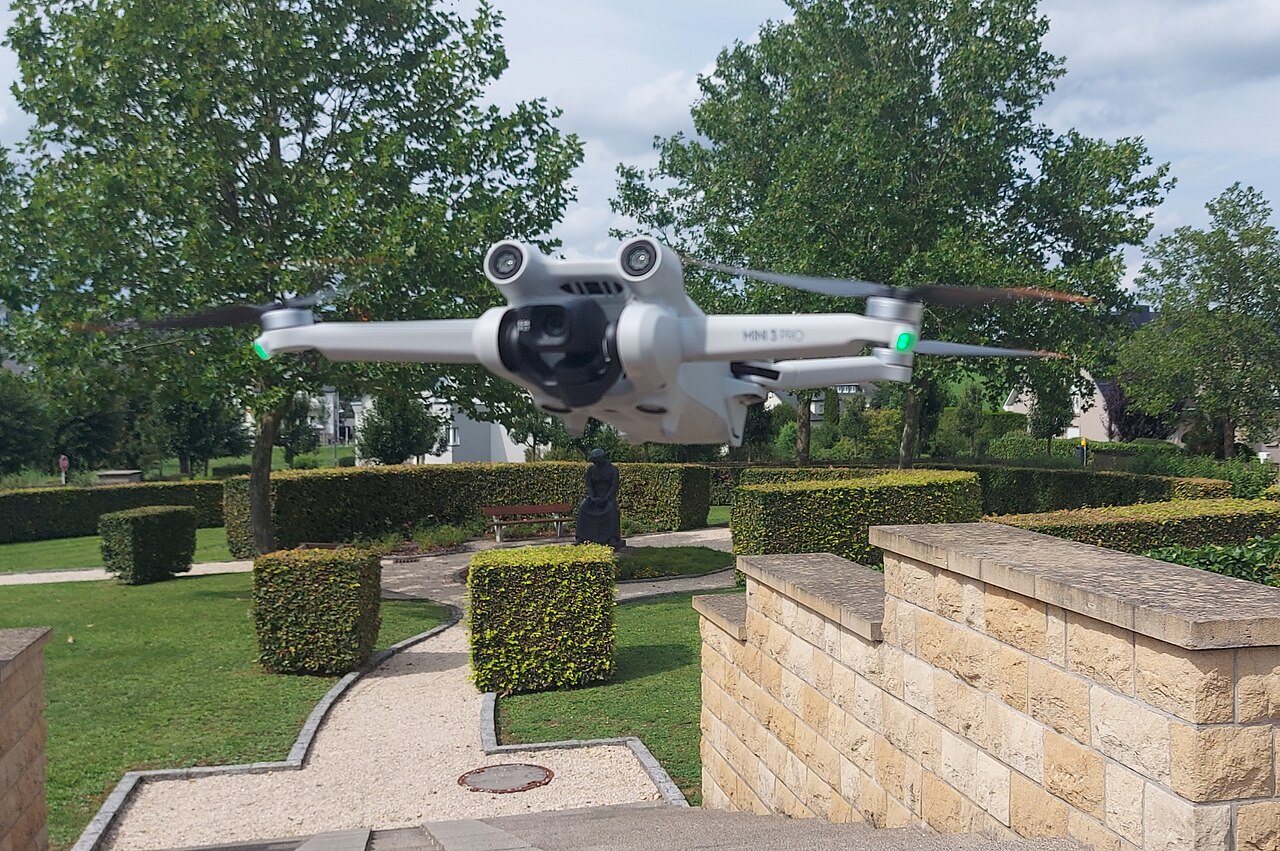
Cover: DJI Mini 3 Pro in flight, archival photograph from August 2023; this is not an update demonstration. Photo: Sultan Edijingo · Original source · CC BY-SA 4.0. Reduced-size copy; any cropped presentation remains under the same image license.

Conversation
Join the conversation
No password needed. Confirm your email once to publish your first comment. Comments appear automatically after verification.
No comments here yet. Start the conversation.