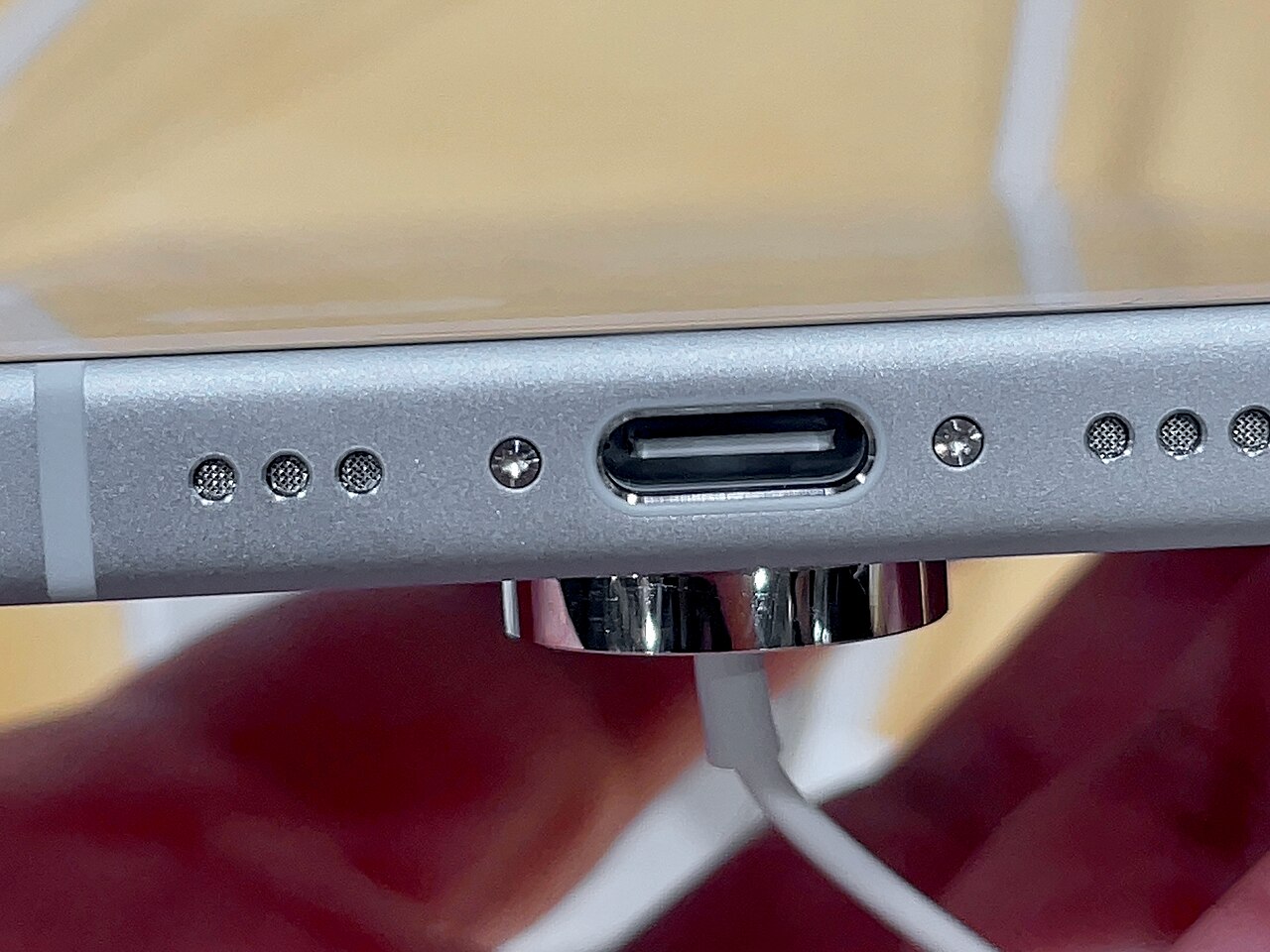
Treat a photo transfer as a copy operation first. Keep the originals until you have opened the copied files and checked that important videos play correctly.
Prepare the phone and computer
Apple's Windows workflow calls for the Apple Devices app from Microsoft Store. Connect the iPhone with a USB cable that supports data transfer, unlock the phone and approve Trust or Allow if prompted. Only trust a computer you control.
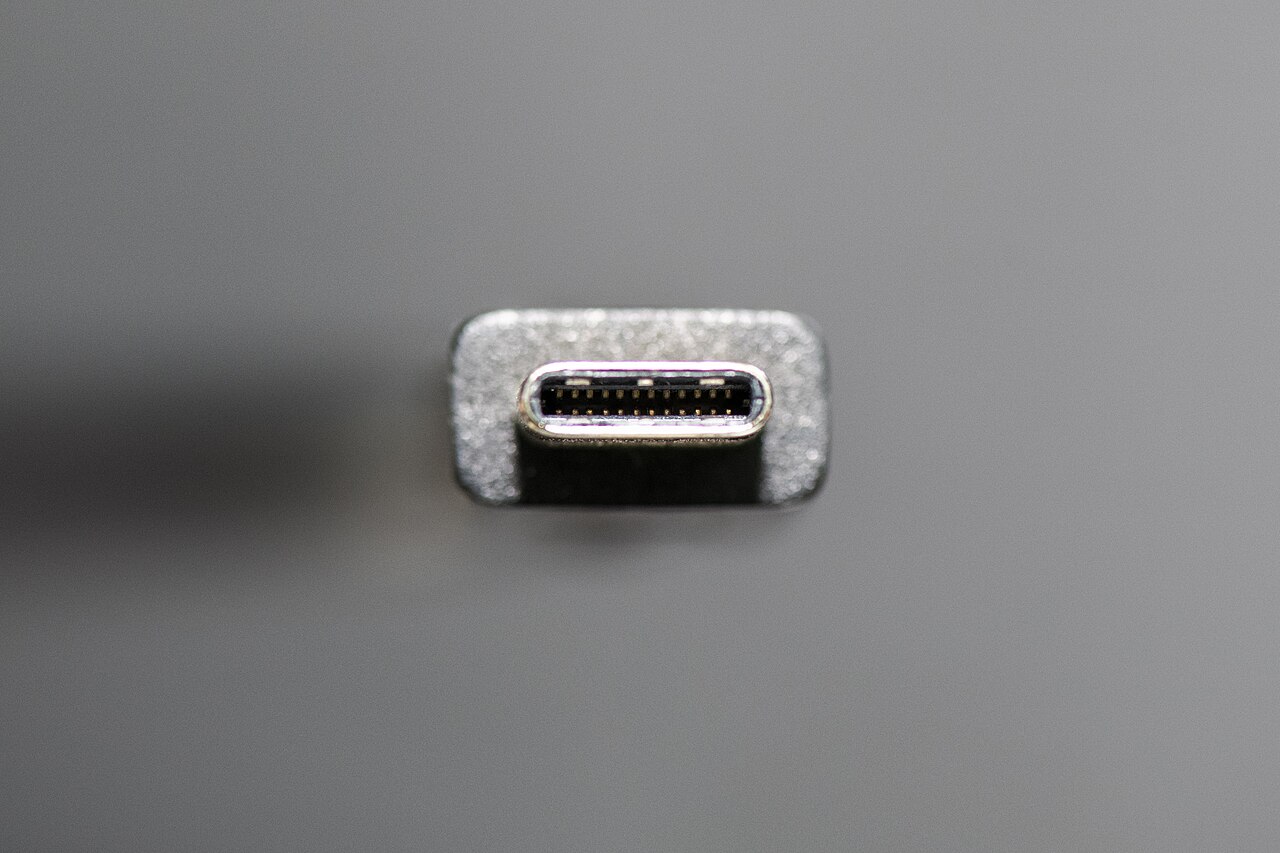
A phone that charges but never appears for importing may be connected through a cable that does not carry data. Try another known data cable and a direct computer port before changing software settings.
Import through Microsoft Photos
Open Photos on Windows, select Import, then choose the connected phone. Follow the prompts to choose items and a destination. Start with a small selection so you can confirm where Windows saves it. Once that works, import the larger batch.
When photos are missing
If iCloud Photos is enabled, Apple says the full-resolution originals must be downloaded to the iPhone before importing them by cable. Do not assume every thumbnail on the phone represents a locally available original. For a cloud-based workflow, follow Apple's linked guidance instead of repeatedly retrying an incomplete cable import.
Check formats and protect the originals
Apple's Settings → Camera → Formats → Most Compatible option changes future captures to JPEG and H.264. It does not retroactively convert the whole library. Keep a copy of the original files if a particular Windows app cannot open them.
Before deleting anything, open several imported photos and a long video from the destination folder. Keep another backup of irreplaceable material. Remember that deleting from a synchronized photo library can affect other devices too.
These are documented import steps, not a hands-on test of every iPhone and Windows combination.
Photo credit
Kyu3 — original photograph · CC BY-SA 4.0. Reduced-size copy; card preview may be cropped. No endorsement is implied.



Conversation
Join the conversation
No password needed. Confirm your email once to publish your first comment. Comments appear automatically after verification.
No comments here yet. Start the conversation.